System User Guide
Superbikemag Trackday & Trophy 2026
Part 1: Registration
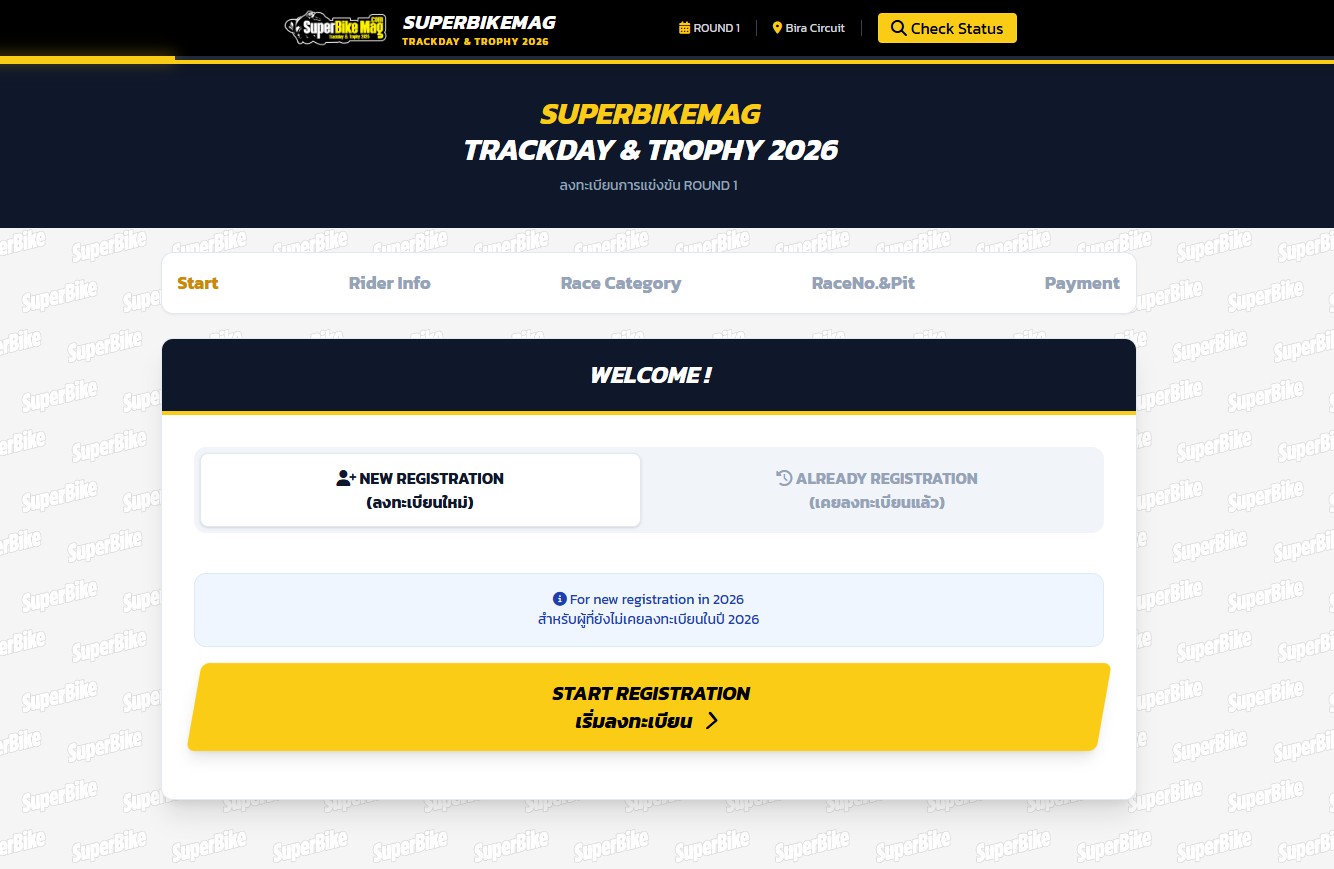
Select Applicant Type
When entering the website, you will find 2 main options:
- New Registration: For those who have not registered in the year 2026 yet.
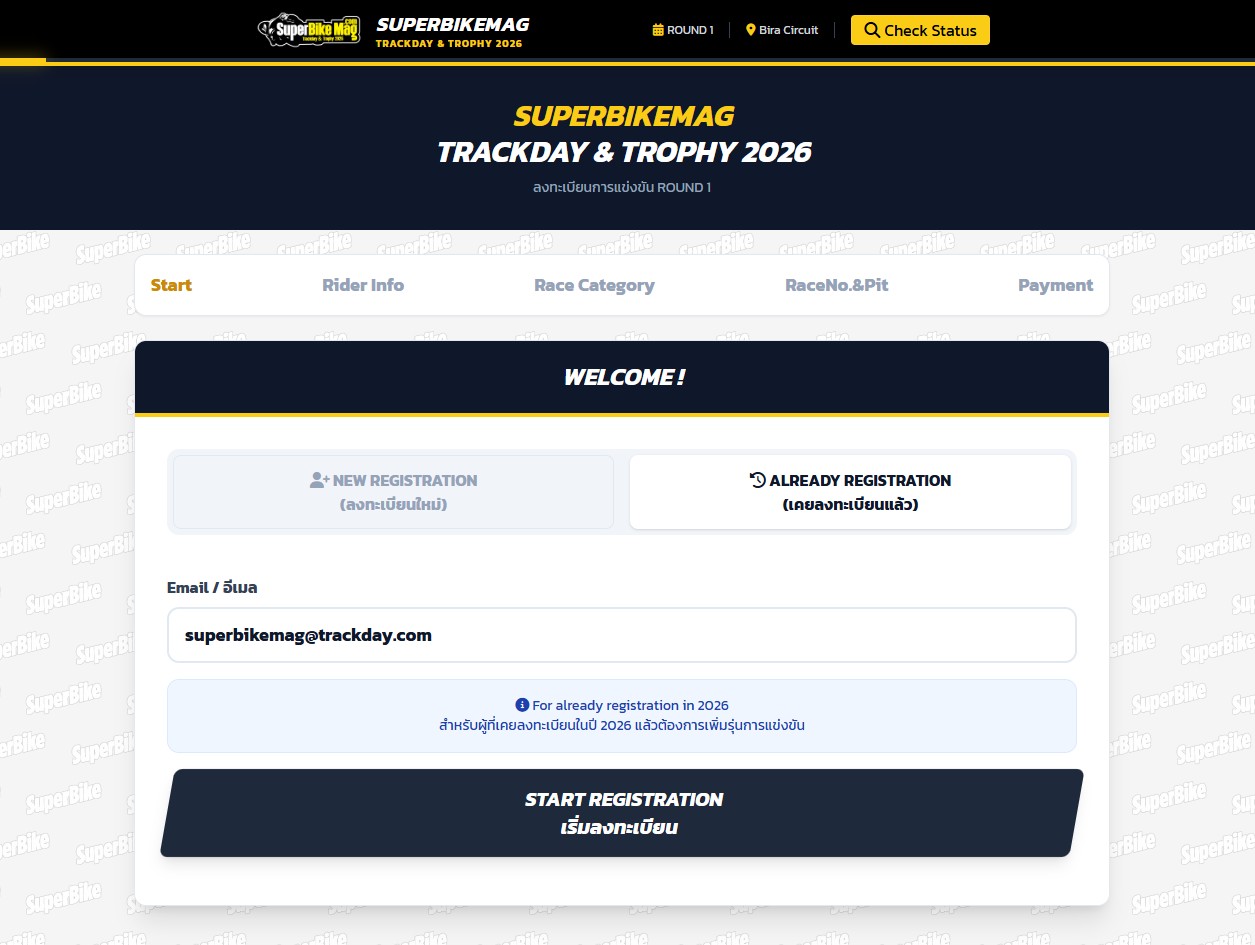
- Already Registration: For those who have already registered and want to add more race classes or register for future events. (The system will retrieve your history and race number).
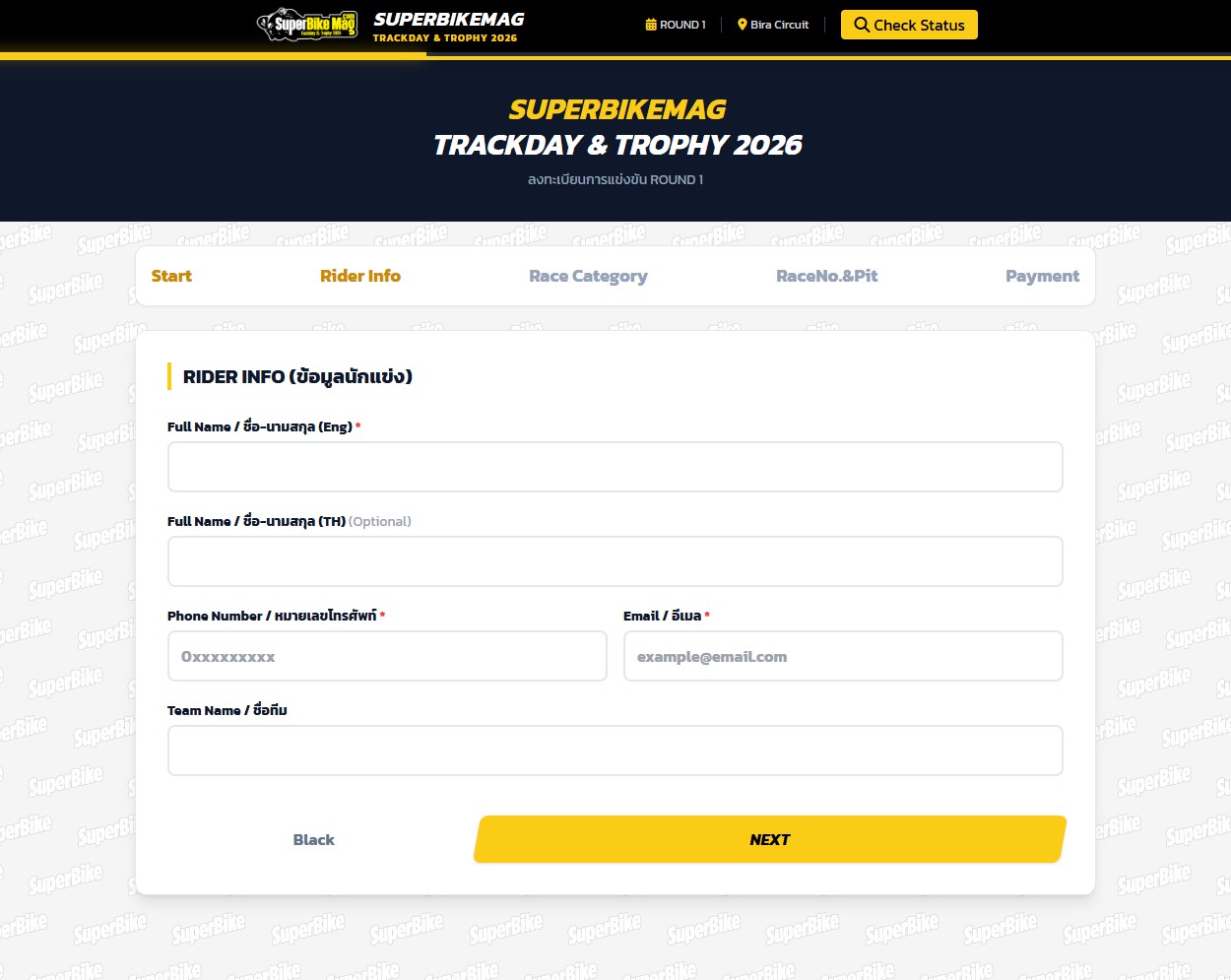
Fill in RIDER INFO
For New Registration
- Full Name (Eng): Must be in English (A-Z) only. *Required
- Full Name (TH) (Optional): Name in Thai (if applicable).
- Phone Number: Enter 10 digits only (no dashes). *Required
- Email: Use a valid email address for status verification later. *Required
- Team Name: Your racing team name (optional).
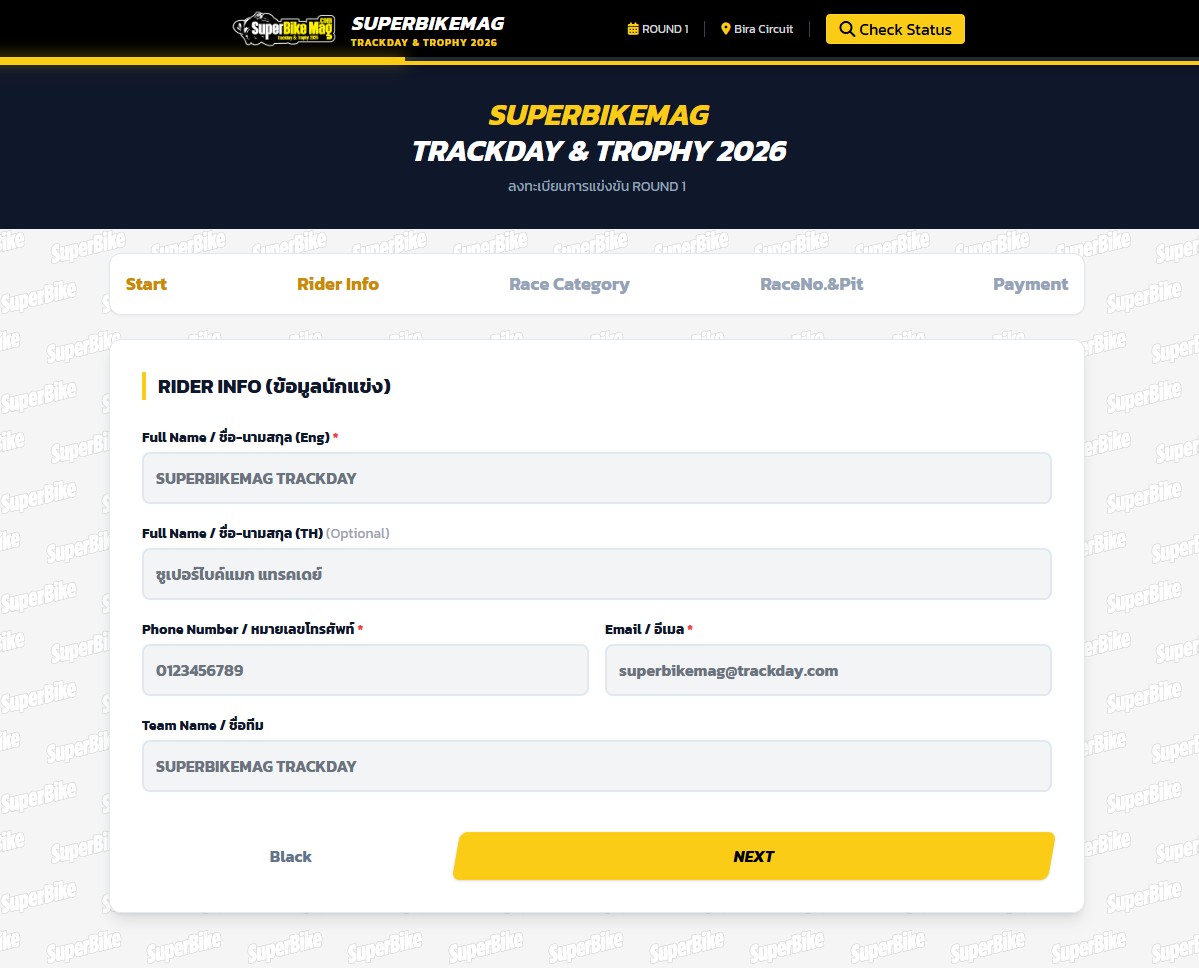
For Already Registration
Simply enter the Email you used to register previously. The system will retrieve your history and race number automatically.
Select Race Category
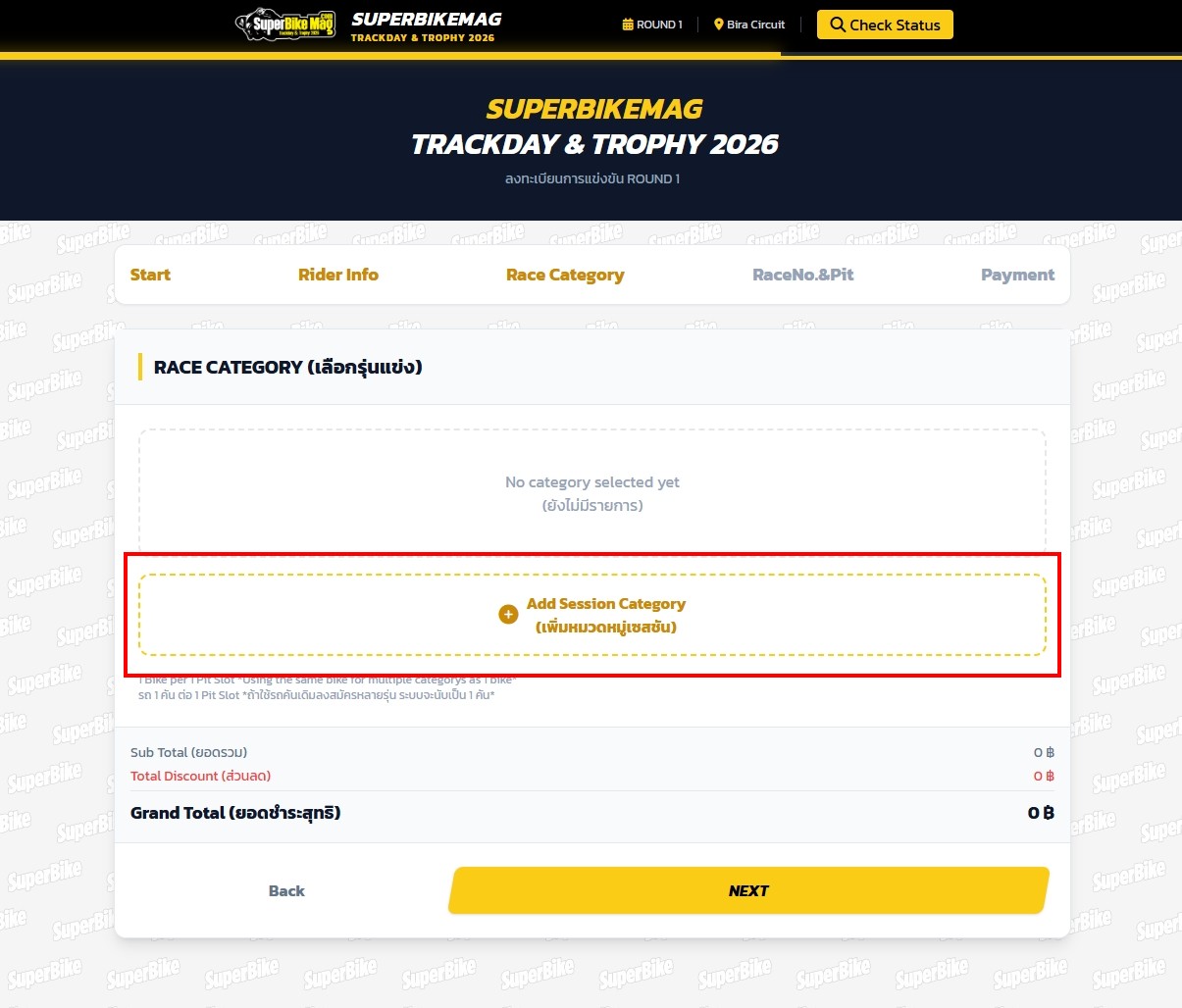
Click the Add Session Category button to select the race class you wish to register for:
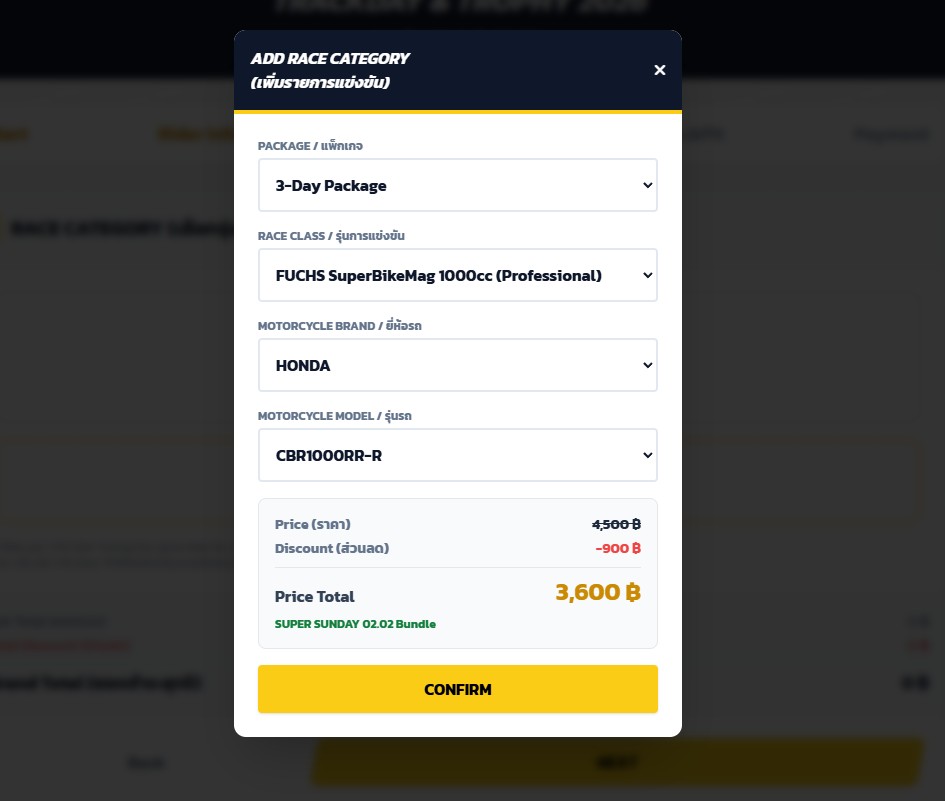
- Select Package / Race Class / Motorcycle Brand / Model.
- Click Confirm to add to cart.
- The system will automatically calculate the best Discount if conditions are met.
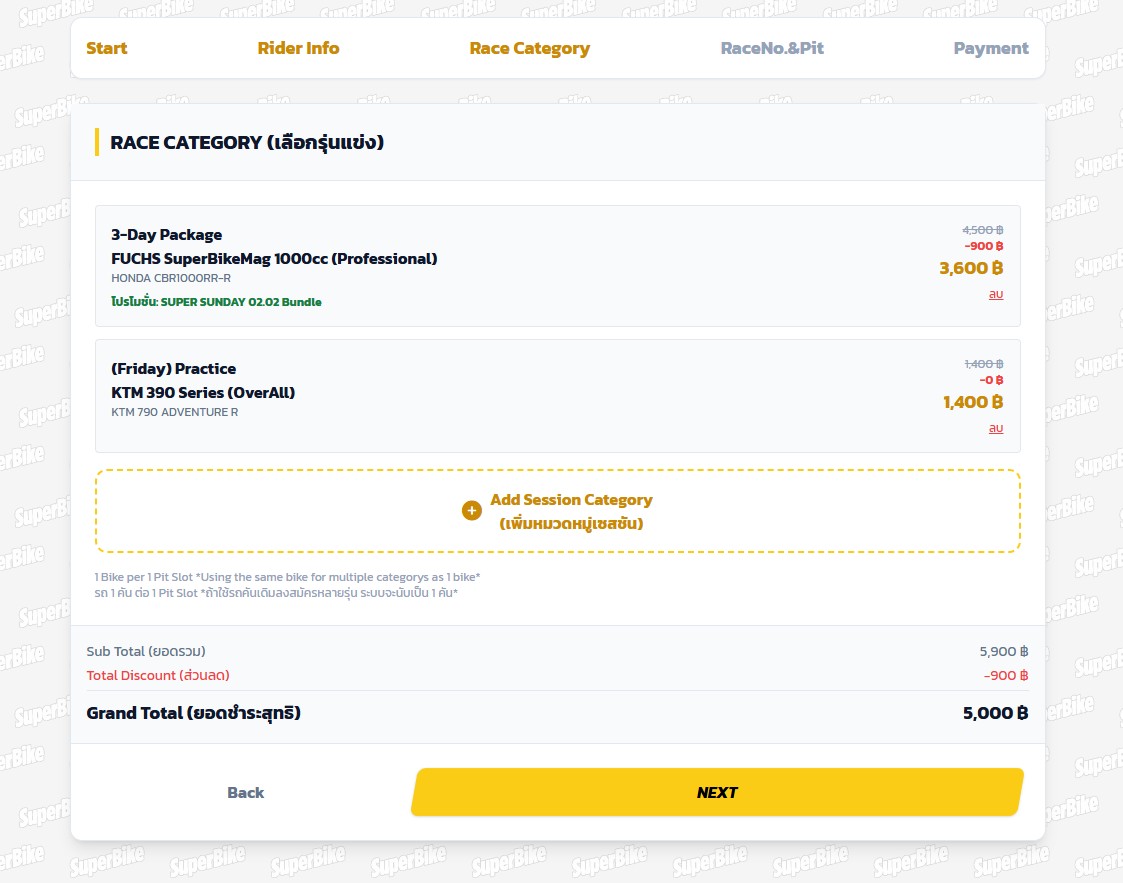
You can click Add Session Category again to add more classes if you wish to race in multiple categories.
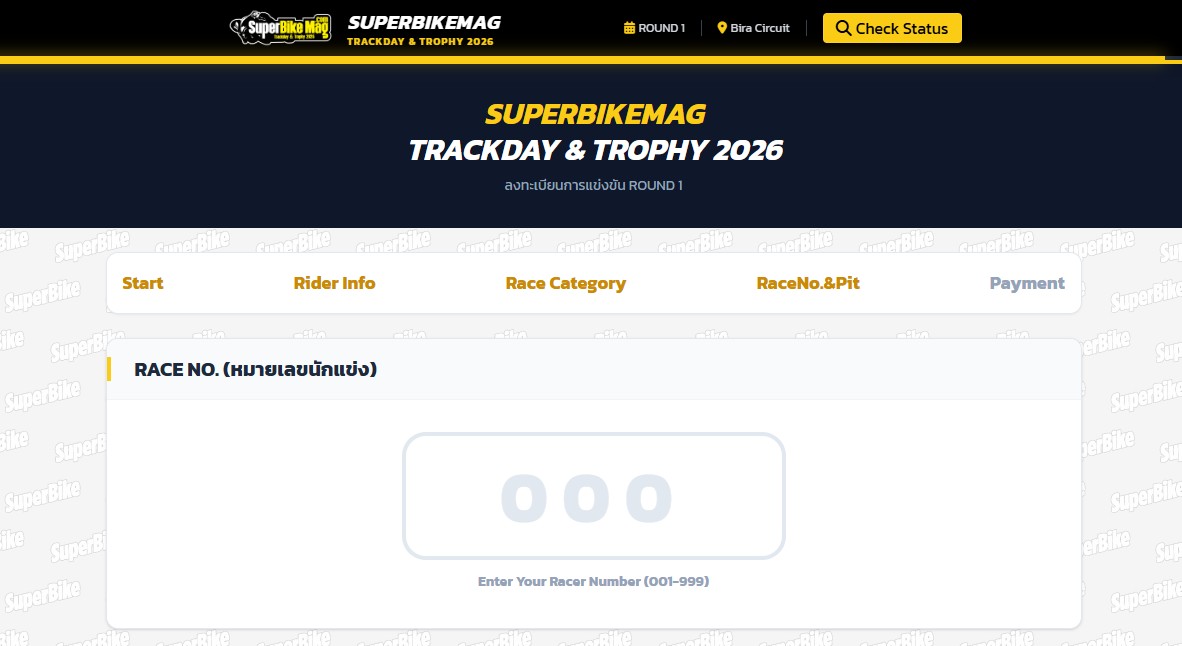
Select Race Number & Pit
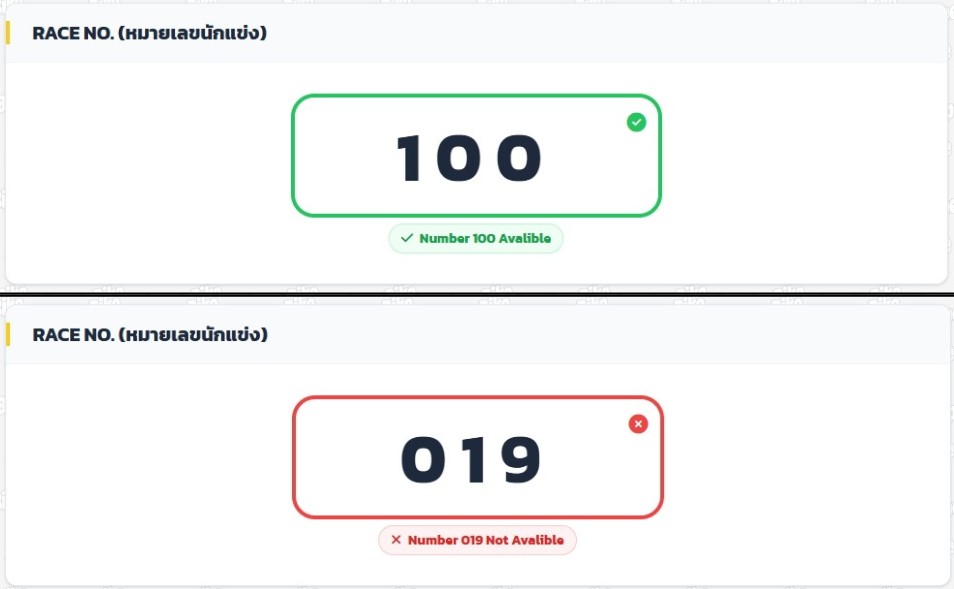
Race No: Enter a 3-digit number (001-999). The system will instantly check if the number is available.
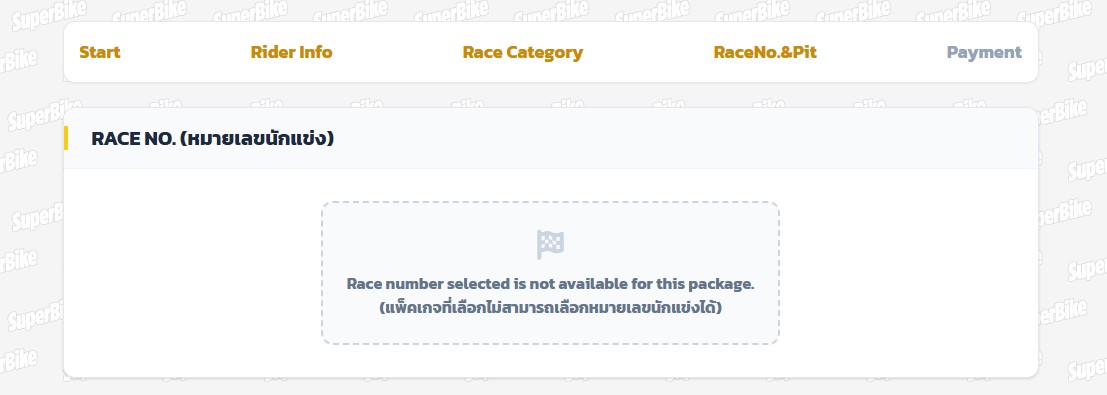
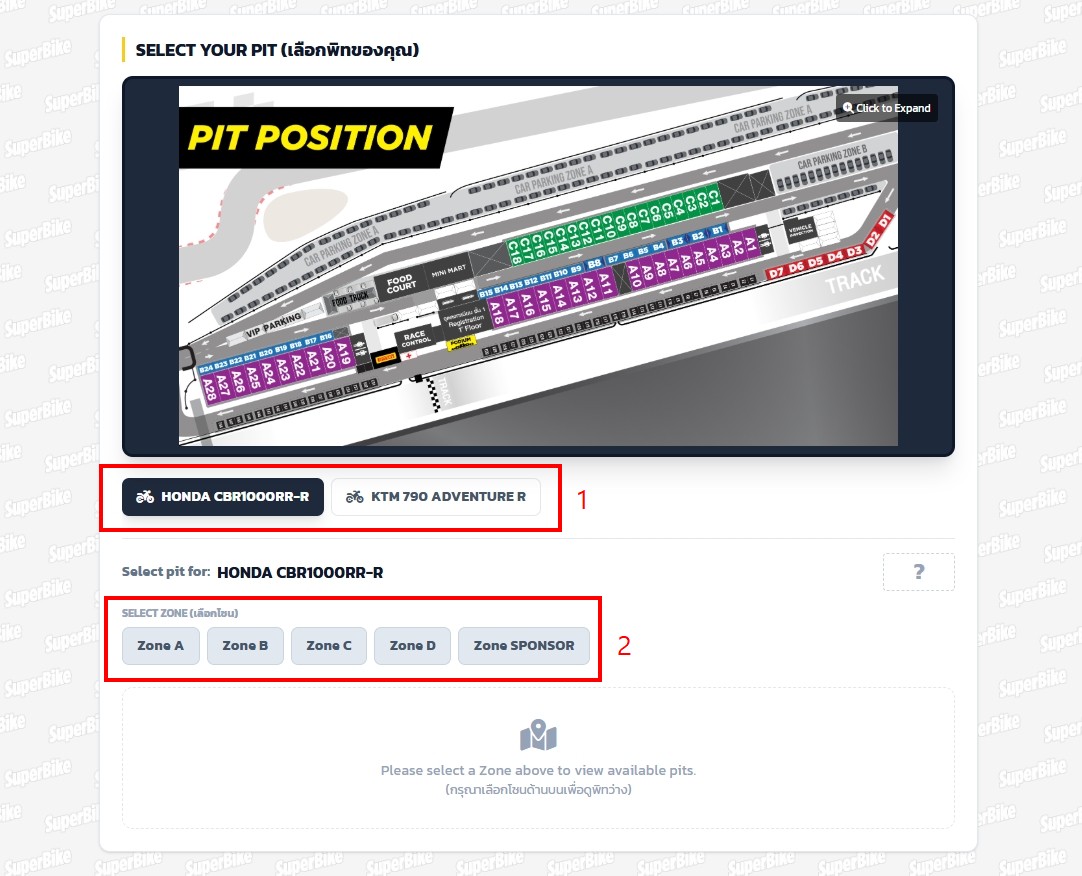
Select Pit: Choose a Pit Zone from the available slots. (If you are a returning racer, the system might lock your previous pit for you).
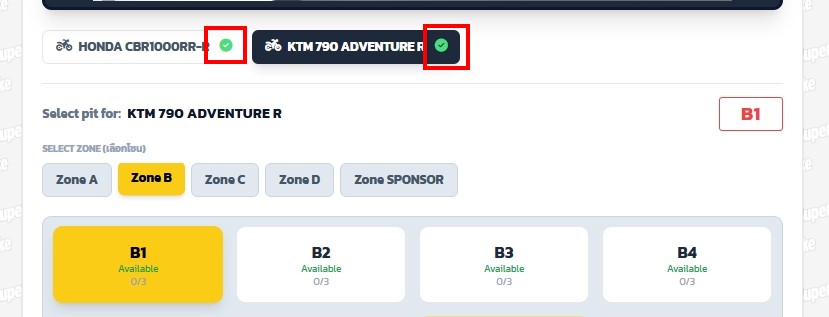
- 1. Select the Motorcycle: Click on the bike tab (if you registered multiple bikes).
- 2. Select Pit Zone (A-D): The system will show the pit map and available slots when clicked.
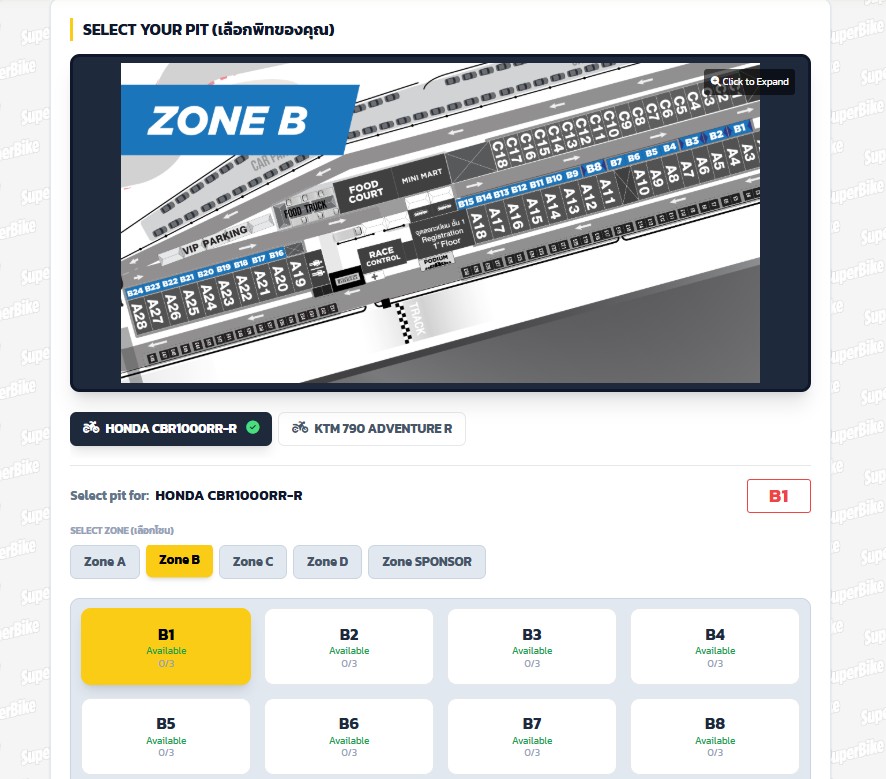
Once a Pit is selected, a checkmark (✔) will appear on the motorcycle tab.
Payment
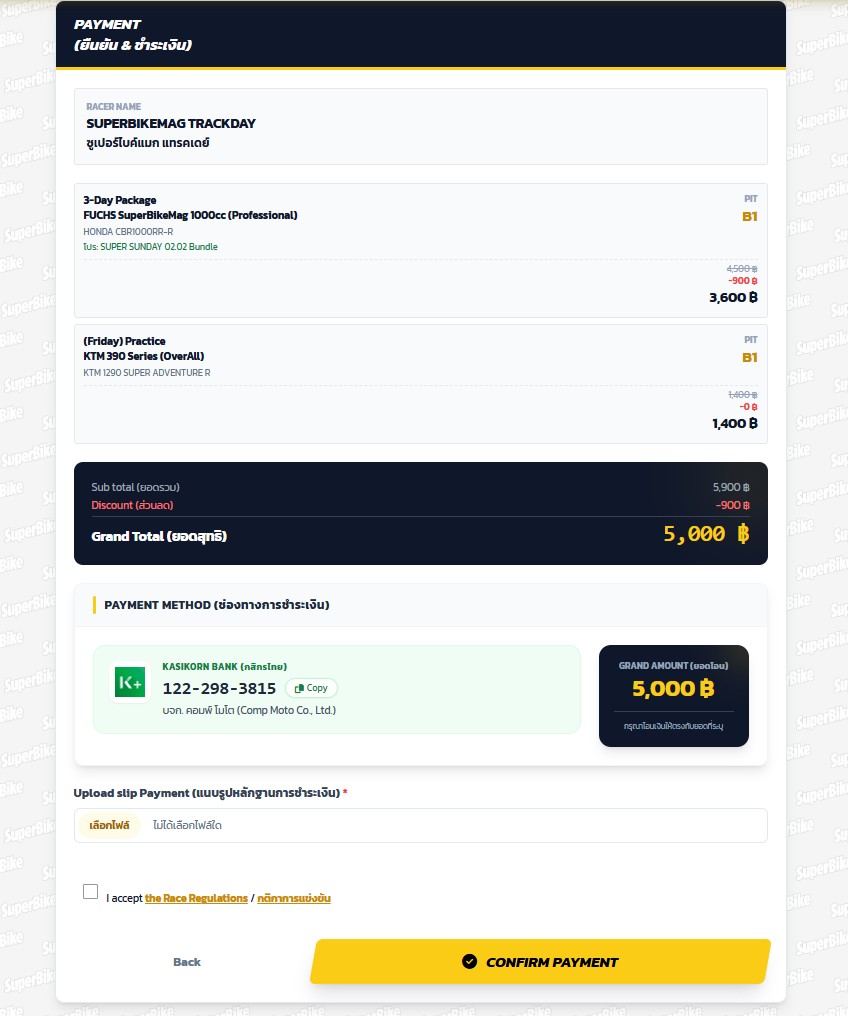
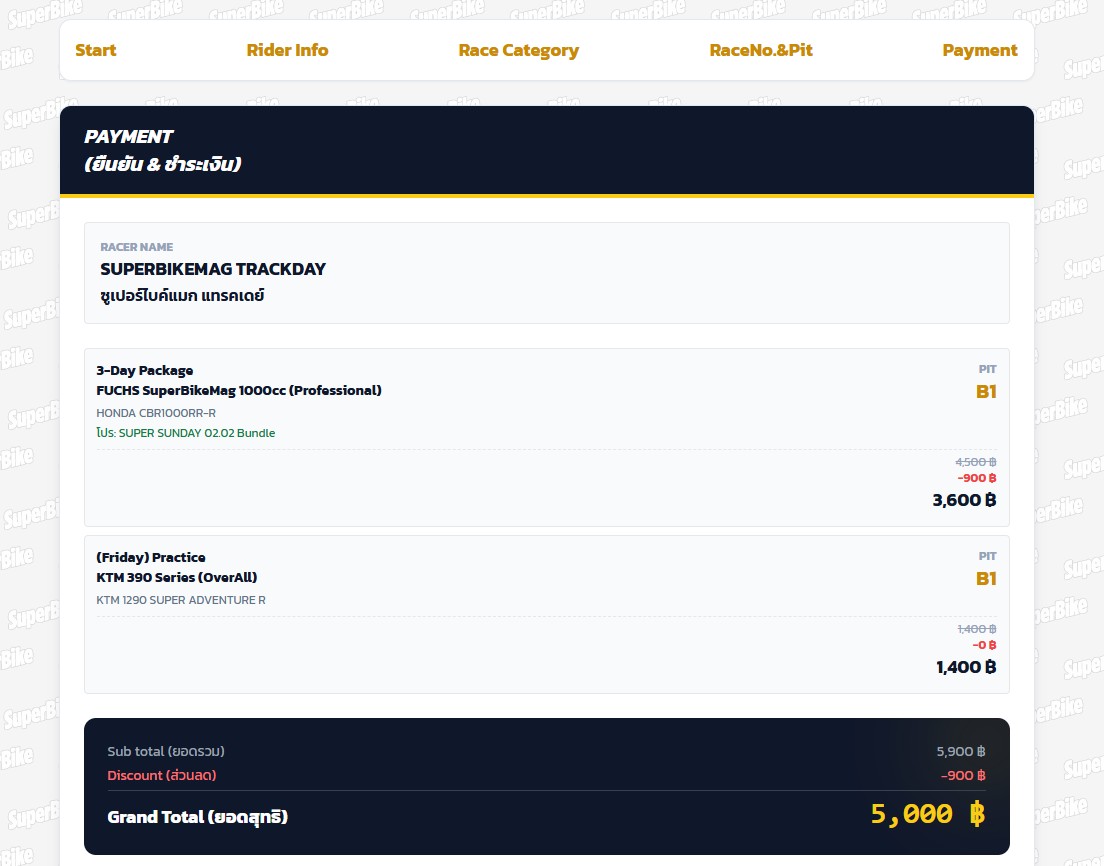
Verify your registration items and the Grand Total amount.
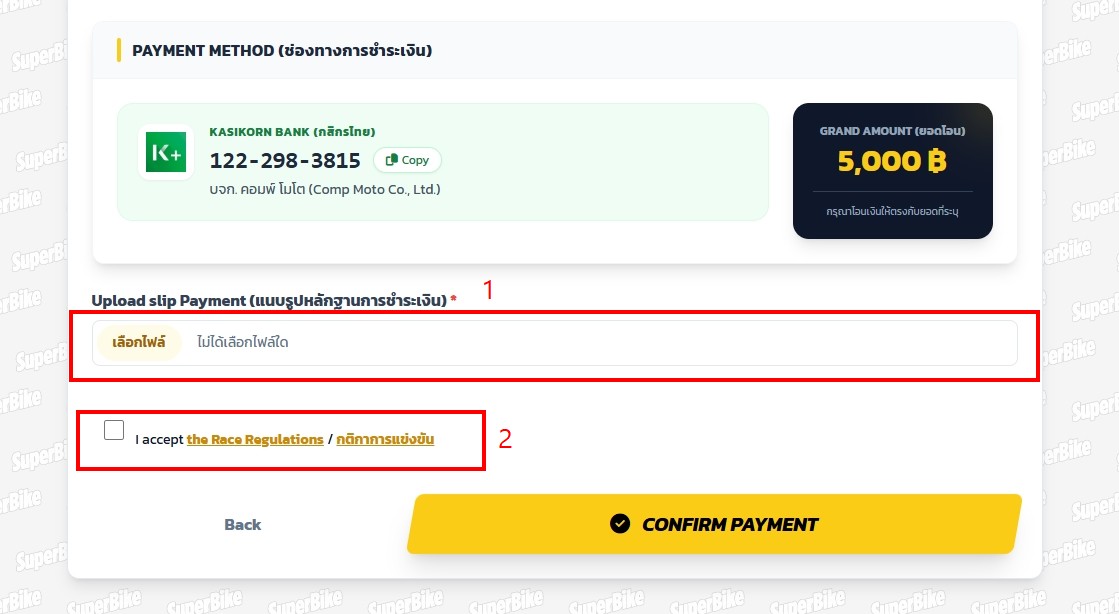
Please transfer the registration fee to the bank account shown below.
Bank Account Details
Bank: Kasikorn Bank (KBank)
Account No.: 122-298-3815
Account Name: Comp Moto Co., Ltd.
- 1. Upload Payment Slip: Attach your transfer proof.
- 2. Accept Rules: Check the box to accept race regulations.
- 3. Confirm Payment: Click the button to submit.
Upon successful submission, the system will show the REGISTRATION RECEIVED page.
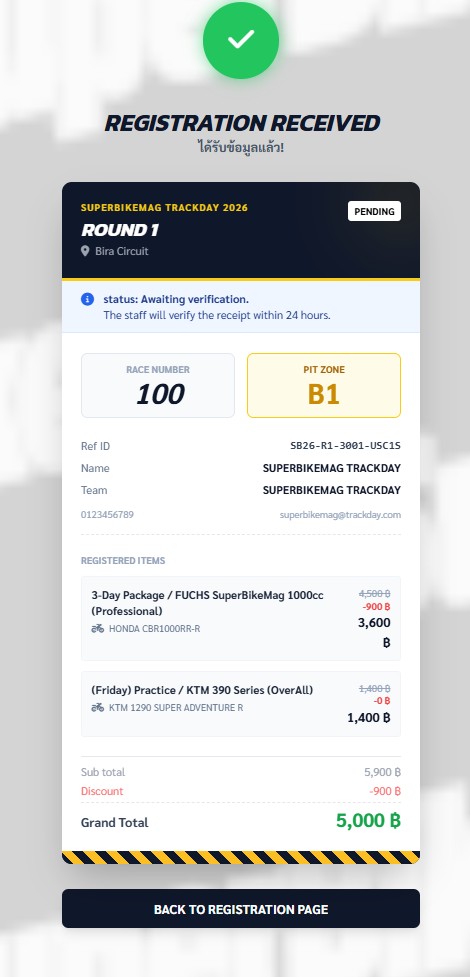
Part 2: Check Status
You can check your registration status, race number, and pit allocation at any time:
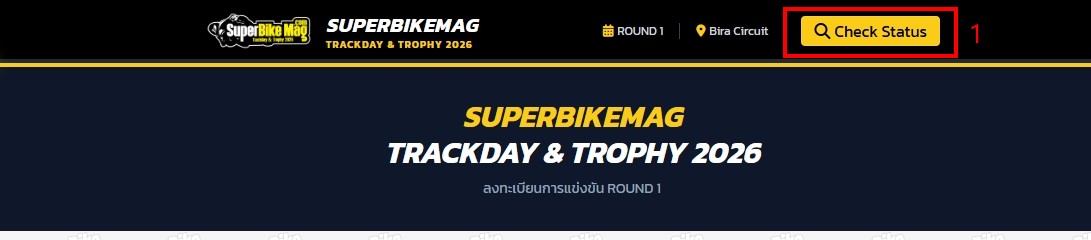
- Click the Check Status menu (top right).
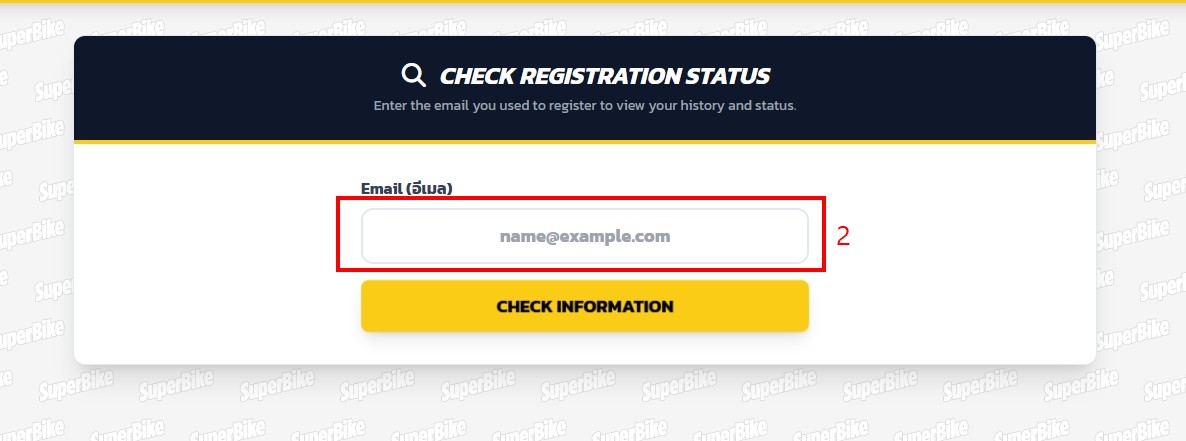
- Enter your registered Email.
- Click Check information.
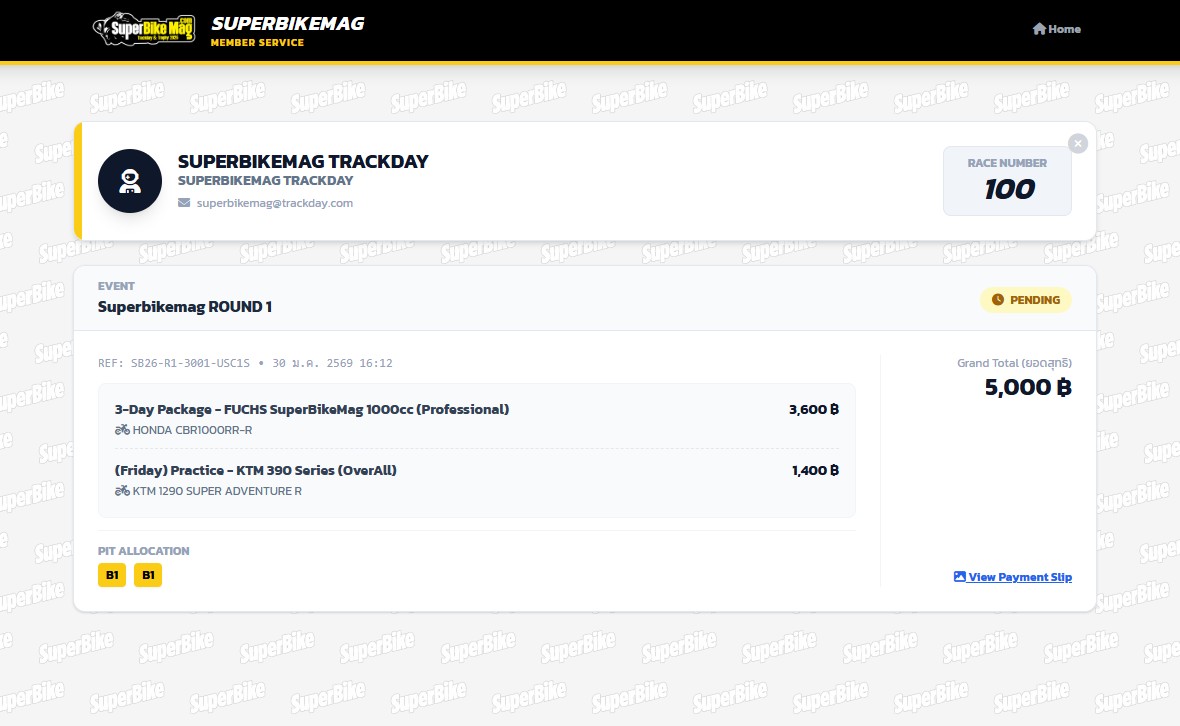
- Pending: Payment submitted (Waiting for admin verification).
- Verified: Registration Confirmed (Payment approved).
- Cancelled: Registration Cancelled.
Part 3: Cancel Registration
Go to Check Status Page
If you are unable to participate in the race due to unforeseen circumstances, you can cancel your registration by following these steps:
- Click the Check Status menu (top right).
- Enter your registered Email.
- Click Check information.
Cancel Registration
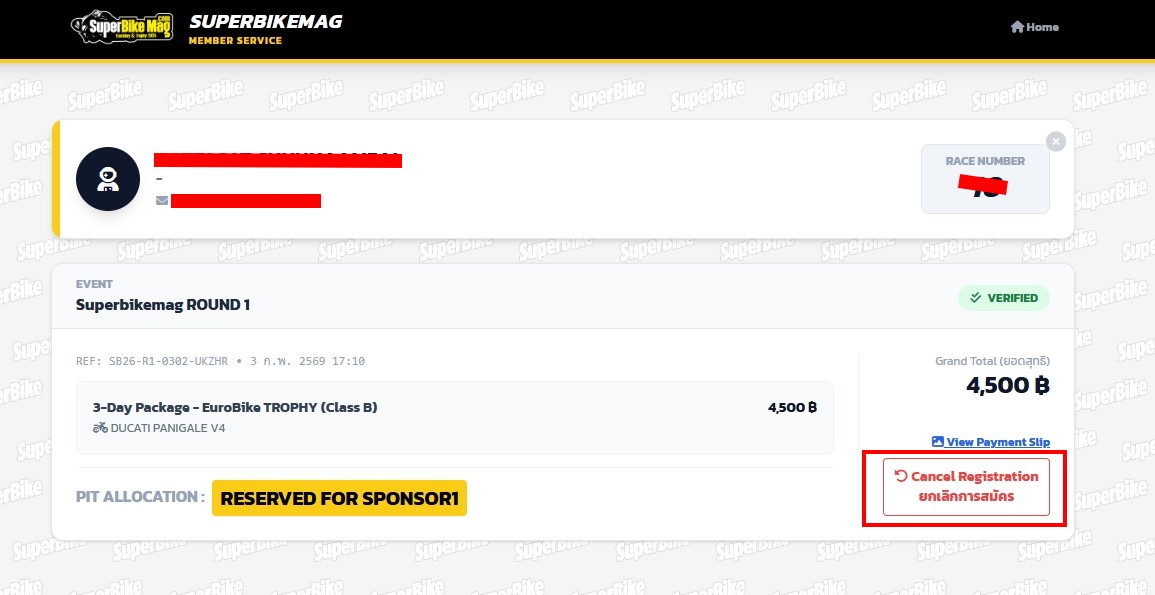
Find the item you want to cancel and click the **Cancel Registration** button.
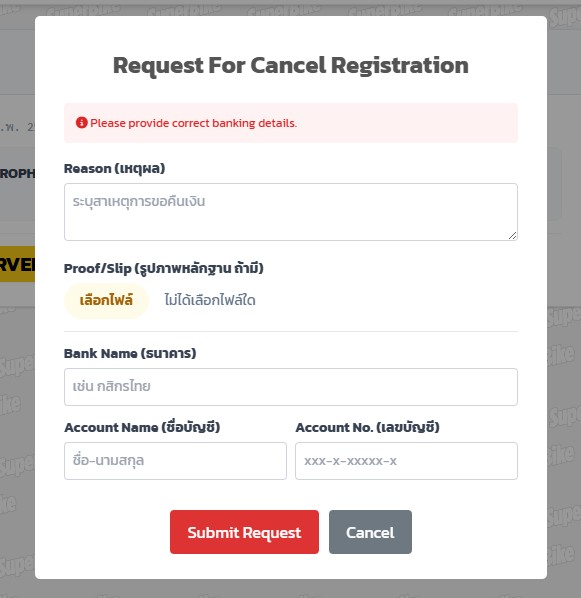
- Find the item you want to cancel and click the Cancel Registration button (bottom right of each item).
- Fill in the information: Reason / Evidence Image (if any) / Refund Account Details.
- Click Submit Request.
Wait for Admin Verification
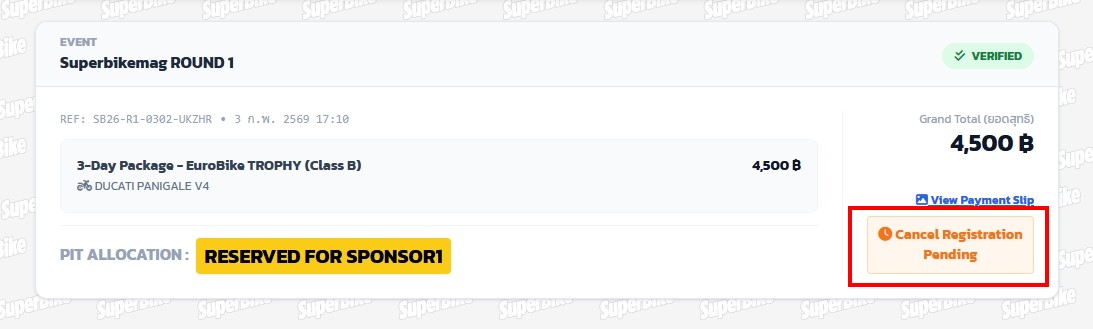
- Once submitted, the status will change to Cancel Registration Pending.
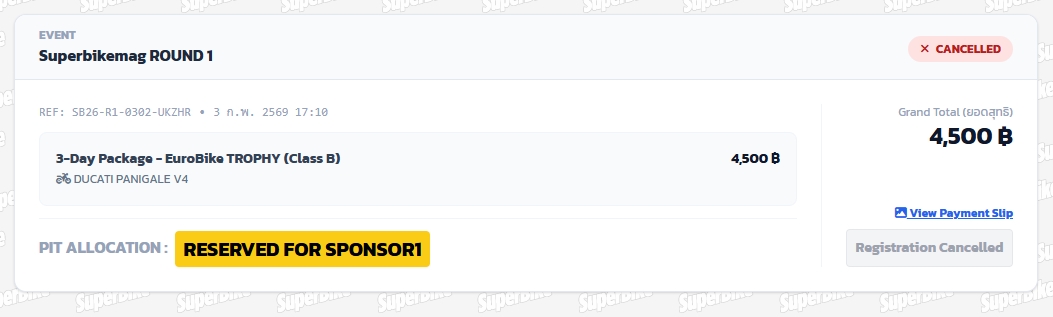
- Once the admin verifies the information and the cancellation is approved, the status will change to Registration Cancelled.
- If the admin finds that the cancellation cannot be processed, the Cancel Registration button will appear again.
** The admin will take time to verify the cancellation request. Refunds will be processed after the race event concludes.